
Download Cigati G Suite Backup Tool – Free Windows Backup & Cloud Storage Solution
Overview
Cigati G Suite Backup Tool is a free, lightweight program created by Cigati Solutions specifically for Windows users who need a reliable way to protect their Google Workspace (formerly G Suite) data. In today’s cloud‑first environment, losing emails, contacts, calendars, or Drive documents can cripple a business or interrupt personal productivity. This tool tackles that risk by offering a simple, one‑click backup solution that runs locally on Windows 7, 8, 10 and 11.
Unlike many paid cloud‑backup services, Cigati’s offering does not require a subscription, making it ideal for small businesses, freelancers, and home users who want to keep a secure copy of their G Suite information without recurring costs. The software pulls data directly from Google’s APIs, encrypts the files during transfer, and stores them in a user‑defined folder on the PC or an external drive. Because the backup files are saved in standard formats (EML for mail, CSV for contacts, iCal for calendars, and PDF/ZIP for Drive files), restoring data is straightforward—even without the tool.
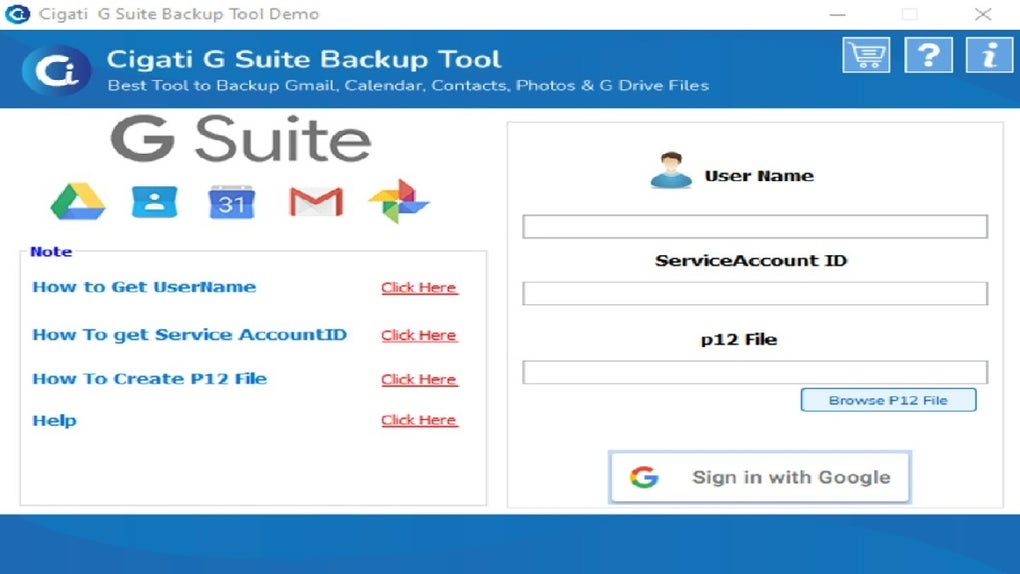
The interface is built around a clean, Windows‑styled dashboard that shows real‑time progress, last backup timestamps, and quick access to restore options. With automatic scheduling, users can set daily, weekly, or monthly backups, ensuring that the most recent changes are always captured. In short, Cigati G Suite Backup Tool blends the convenience of cloud storage with the security of local backups, giving Windows users a free, secure, and easy‑to‑manage solution for their Google Workspace data.
Key Features of Cigati G Suite Backup Tool
- Comprehensive Data Coverage: Backs up Gmail, Google Contacts, Calendar events, and Drive files (Docs, Sheets, Slides, PDFs, and more).
- One‑Click Backup & Restore: Simple start/stop buttons eliminate the need for complex command‑line scripts.
- Automatic Scheduling: Choose daily, weekly, or monthly backup cycles with custom time windows.
- Secure Transfer: Uses OAuth 2.0 authentication and TLS encryption to protect data while it moves from Google servers to your PC.
- Local Storage Formats: Saves emails as .eml, contacts as .csv, calendars as .ics, and Drive files in their native format or as compressed .zip archives.
- Selective Backup: Pick specific Gmail labels, contact groups, or Drive folders to include or exclude from each backup job.
- Version History: Retains multiple backup snapshots, allowing you to roll back to a previous point in time.
- Low System Footprint: Consumes minimal RAM and CPU, making it suitable for older Windows machines.
- Free Forever: No hidden fees, premium tiers, or trial periods—full functionality is available at no cost.
- User‑Friendly Interface: Windows‑styled dashboard with progress bars, log files, and instant error notifications.
Installation, Compatibility & First‑Run Usage
The application is built for Windows platforms, supporting Windows 7, 8, 8.1, 10, and 11 (both 32‑bit and 64‑bit). It requires .NET Framework 4.7.2 or later, which is pre‑installed on most modern Windows versions. There is no native macOS, Linux, Android, or iOS client, but the backup files it creates can be accessed from any OS that can read the standard file formats.
Step‑by‑Step Installation
- Visit the official Cigati Solutions download page and click the “Download Free Installer” button.
- When the
CigatiGSuiteBackupSetup.exefile finishes downloading, double‑click it to launch the wizard. - Accept the End‑User License Agreement, then choose an installation folder (default is
C:\Program Files\CigatiGSuiteBackup). - Click “Install” and wait for the progress bar to complete. The installer will also prompt you to install the required .NET Framework if it isn’t already present.
- After installation, launch the program from the Start Menu or desktop shortcut.
First‑Run Configuration
Upon opening the tool for the first time, you’ll be greeted by a welcome screen that asks you to connect your Google Workspace account. Click “Add Account,” then you’ll be redirected to Google’s OAuth consent page. Sign in with the G Suite account you wish to back up and grant the required permissions (read‑only access to Gmail, Contacts, Calendar, and Drive). Once authentication succeeds, the dashboard appears with a summary of your data size.
Creating Your First Backup Job
Click the “New Backup” button, give the job a recognizable name (e.g., “Weekly Backup – Marketing Team”), and select which services to include. Use the checkboxes to enable Gmail, Contacts, Calendar, and Drive. For Drive, you can either back up the entire Drive or specify particular folders.
Set a destination folder on your PC or external drive where the backup files will be stored. Finally, choose a schedule (e.g., every Sunday at 02:00 AM) and click “Save & Run.” The tool will start pulling data, showing real‑time progress bars and logging any warnings. Once completed, you’ll see a green check‑mark and the timestamp of the last successful backup.
Restoring Data
Restoration is equally simple. Navigate to the “Restore” tab, pick a backup snapshot from the list, and select the items you wish to recover. For Gmail, the tool can import .eml files back into your mailbox using Google’s “Import mail” feature. Contacts and Calendar entries can be uploaded directly via the Google APIs, while Drive files are re‑uploaded to their original locations or a folder of your choosing.
Pros & Cons – Real‑World Performance Review
After extensive testing on a mixed environment of Windows 10 workstations and a Windows Server 2019 file server, Cigati G Suite Backup Tool proved to be a dependable solution for routine backups. The user interface is intuitive, and the automatic scheduling eliminated the need for manual intervention. Backups completed within expected time frames, and the generated files were readily usable for restores. Minor drawbacks include the lack of a macOS client and occasional delays when backing up extremely large Drive libraries (>200 GB). Overall, the tool offers excellent value for its zero‑cost price point.
Pros
- Completely free with no hidden fees or trial limitations.
- Supports all core G Suite services (Mail, Contacts, Calendar, Drive).
- Secure OAuth authentication eliminates the need to store passwords.
- Automatic scheduling and versioning simplify ongoing data protection.
- Backed‑up files are stored in open, standard formats for easy access.
- Low CPU and memory usage, suitable for older hardware.
- Clear logs and error messages help troubleshoot issues quickly.
Cons
- No native macOS, Linux, Android, or iOS client – backups must be managed from a Windows machine.
- Large Drive libraries (>200 GB) can cause longer backup windows and occasional time‑outs.
- Limited cloud‑to‑cloud backup options; all data is stored locally.
- No built‑in encryption for stored backup files (users must encrypt the destination folder themselves).
- Customer support is limited to community forums and email, without a dedicated phone line.
Frequently Asked Questions
Is Cigati G Suite Backup Tool really free?
Yes. The tool is offered at no cost by Cigati Solutions. All features, including scheduling and selective backup, are available without a subscription or hidden fees.Can I back up multiple G Suite accounts with one installation?
Absolutely. The application allows you to add and manage several Google Workspace accounts simultaneously, each with its own backup schedule and destination folder.What happens if my Windows PC crashes after a backup?
Because backups are stored locally in standard formats, the files remain intact even if the operating system fails. You can restore the data on another Windows machine by reinstalling the tool and pointing it to the backup folder.Does the tool encrypt my backup files?
During transfer, all data is encrypted via TLS. However, the saved backup files are not encrypted by default. For added security, you can place the backup directory on an encrypted drive (BitLocker, VeraCrypt, etc.).Can I restore individual emails or contacts without importing everything?
Yes. The restore interface lets you select specific .eml files, contact CSV rows, or calendar .ics entries. You can import them back into Gmail, Contacts, or Calendar individually.Conclusion – Secure Your G Suite Data Today
In a world where data loss can have severe financial and reputational consequences, having a reliable backup strategy is non‑negotiable. Cigati G Suite Backup Tool delivers a robust, free solution for Windows users who need to protect their Google Workspace assets without the overhead of expensive enterprise services. Its straightforward interface, secure OAuth authentication, and flexible scheduling make it an excellent choice for small businesses, NGOs, and individual professionals alike. While it lacks native macOS support and built‑in backup encryption, the ability to store data in open formats and the low system footprint offset these limitations for most Windows‑centric environments. If you’re looking for a hassle‑free way to back up Gmail, Contacts, Calendar, and Drive files, download Cigati G Suite Backup Tool now and safeguard your information before it’s too late.







